
I recently had to enroll in Entra P2 and Intune trials for a project, and since both came with 25 licenses I figured I might as well use the leftovers to lab out some things I haven’t been working with in a production environment but should probably be more familiar with. First up: Privileged Identity Management, focused on the very topical Intune Administrator role.
The goal here is simple and covers a surprising amount of ground: take a role that would normally be permanently assigned to an admin, convert it into a just-in-time, approval-gated eligible assignment, request/activate it as the user, and watch the whole thing get logged and eventually expire. So let’s go on a little adventure and see how the end-to-end flow actually behaves.
Setting the stage
For a test subject I created a user named Wayne Campbell, assigned him a P2 license, then signed in as him in an incognito window and ran through the basic MFA setup. Usual user onboarding stuff, excellent.
Creating an eligible assignment
The actual PIM work starts in the Entra admin center under ID governance → Privileged Identity Management → Microsoft Entra roles. From there:
- Assignments → + Add assignments.
- Role: Intune Administrator. Member: the test user.
- On the Setting tab, choose Eligible (not Active) and set an assignment duration, I went with 2 hours.
The eligible vs. active distinction is the whole point of PIM, so it’s worth spelling out: eligible means the user can activate the role when needed, while active means they have it right now. Handing out active assignments defeats the purpose of the entire exercise.
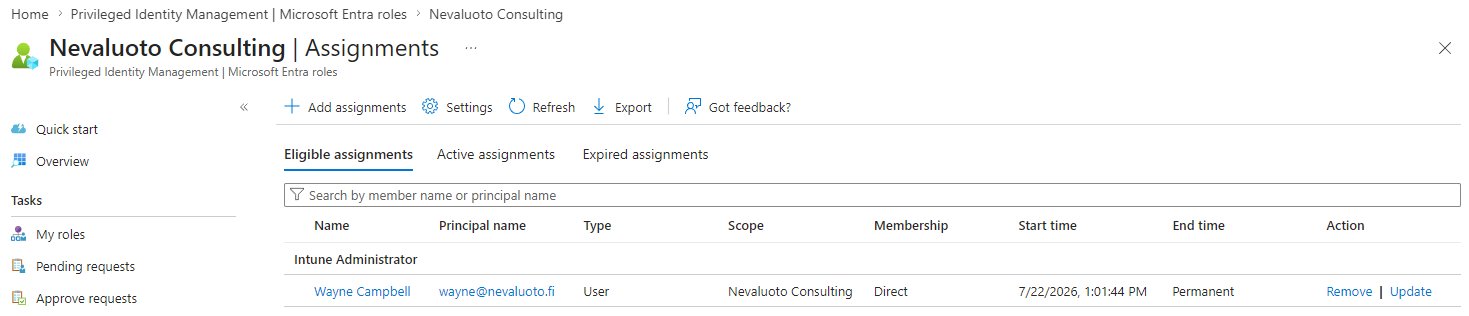
After assigning, the test user shows up under Assignments → Eligible assignments.
Configuring the role activation settings
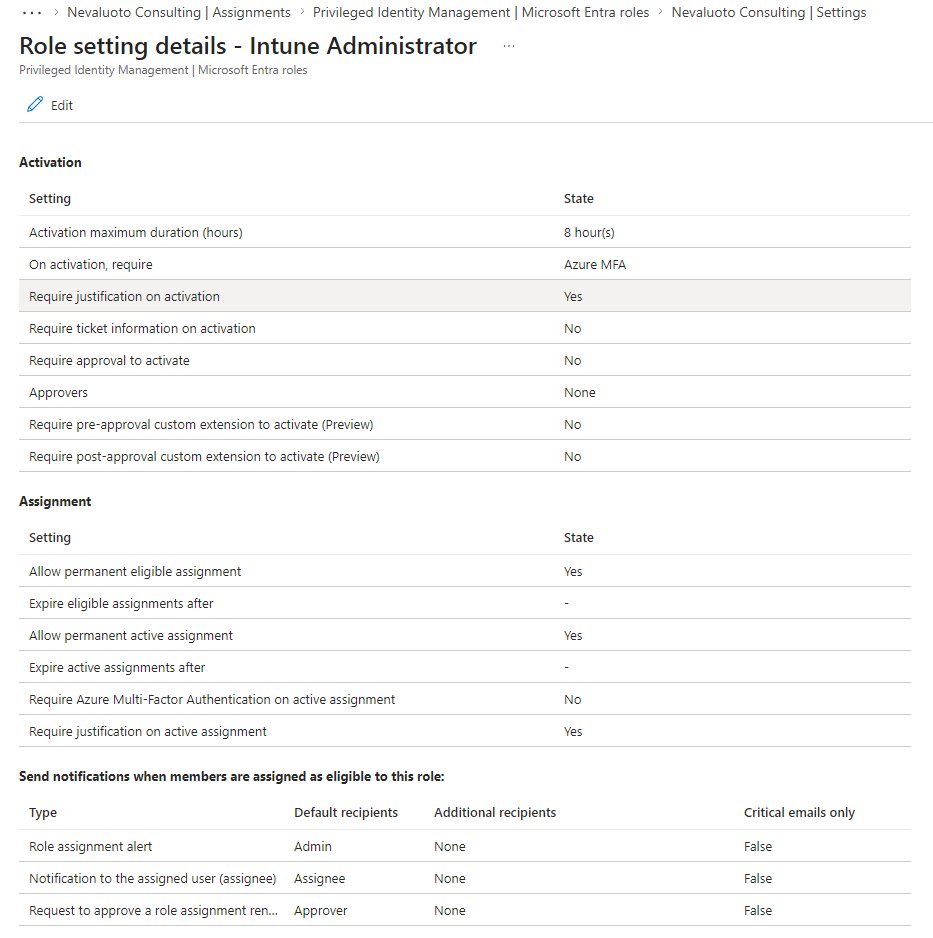
Which takes us to the part where the guardrails actually get defined. In PIM → Microsoft Entra roles → Settings, select Intune Administrator and hit Edit. My lab config:
- Activation maximum duration: 2 hours (short, so I could watch it expire without waiting a full workday)
- On activation, require: Azure MFA
- Require justification on activation: Yes
- Require ticket information: enabled, mostly to see what it looks like in practice
- Require approval to activate: Yes, with my admin account as the approver
Activating the role as the test user
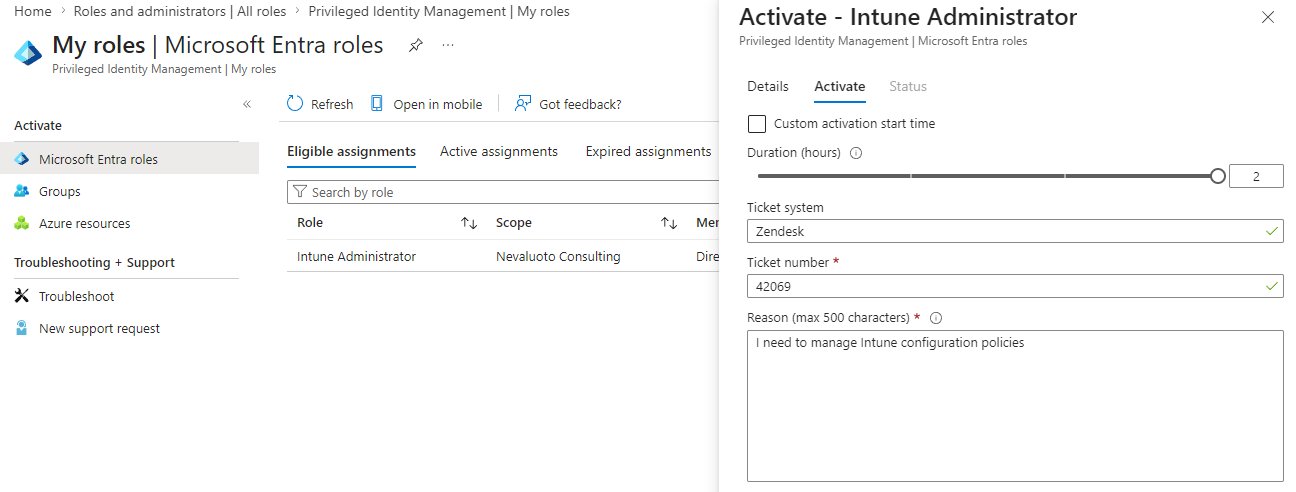
Back in a private window as Wayne: Entra portal → PIM → My roles → Eligible assignments. There’s an Activate button next to Intune Administrator. Clicking it prompts for MFA, a duration (I left it to 2 hours), and a justification. Mine was “Deploying compliance policy for lab,” which is about as believable as lab justifications get.
Approving the request
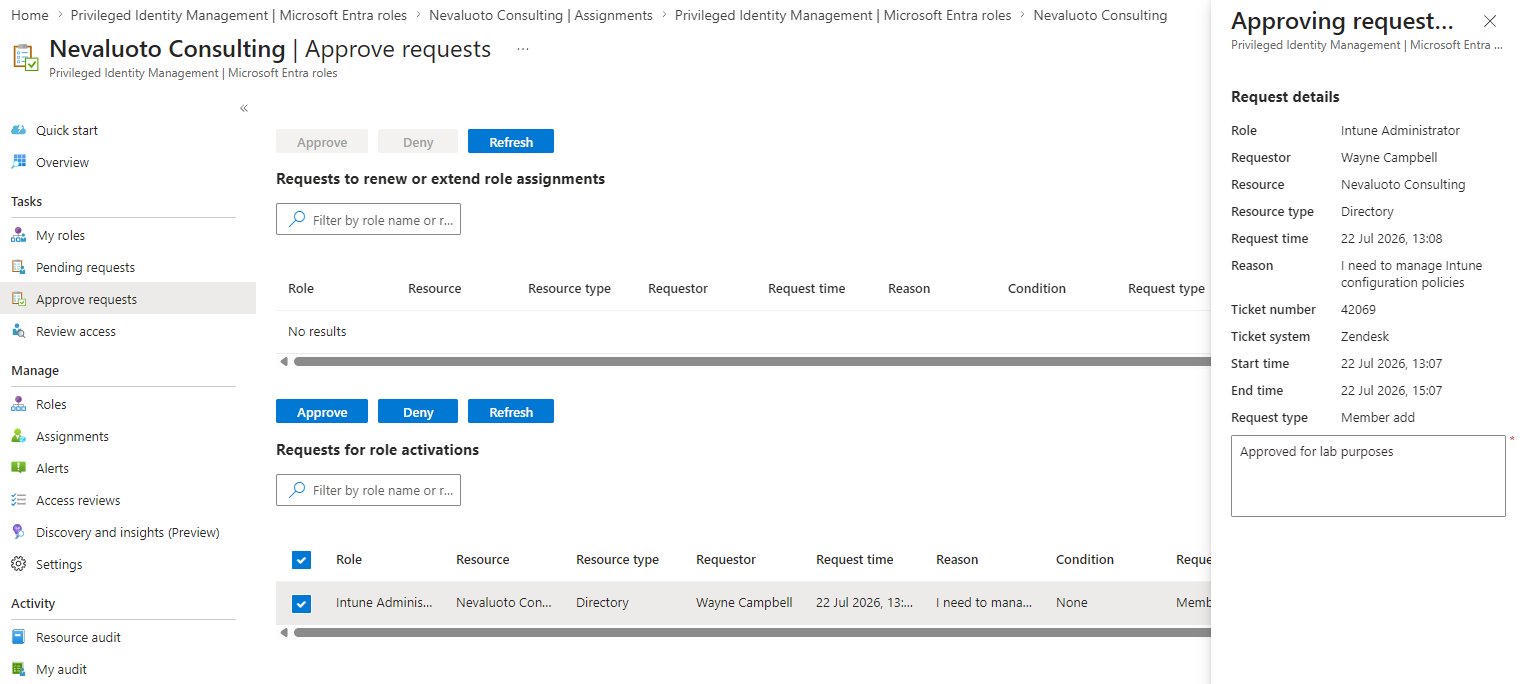
As the admin, pending requests live under PIM → Approve requests. There’s also an email notification about the pending approval, and delivery was fast, almost instant. I approved with a justification, and got follow-up emails both for the approved request and for the user having then activated the role. The notification chain is thorough.
Back as the test user, the role became active basically right away. The easy way to verify: open intune.microsoft.com as the test user and see that it now fully loads instead of showing an access denied page.
One caveat worth mentioning: the user may or may not have to sign out and sign back in for the role to take effect. This is pretty typical behaviour for any role assignment in the Microsoft ecosystem. In my case I didn’t need to, just refreshing the Intune admin page worked.
Waiting for the expiry
The activated assignment now also shows up under Assignments, where it can be removed or updated manually. But since the point of the lab was to see the full lifecycle, I let the requested time lapse instead (in hindsight, I should not have used 2 hours as the maximum after all…).
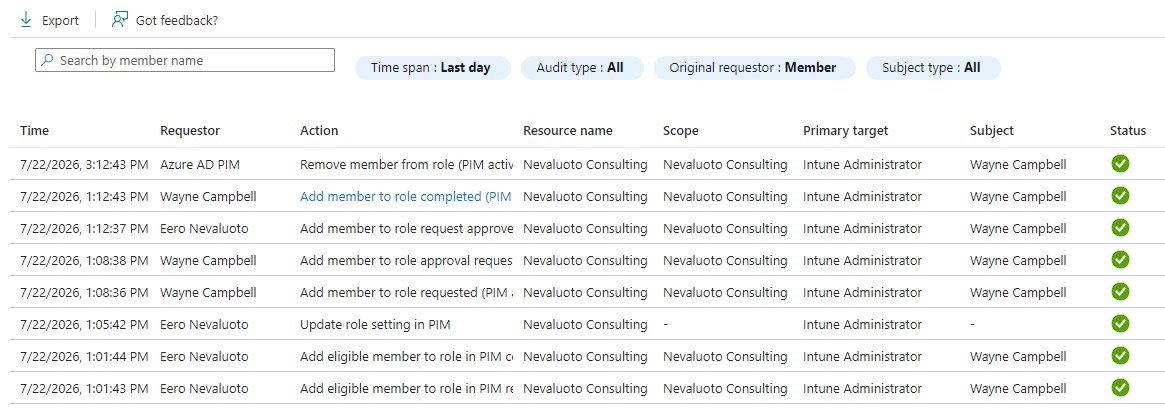
While waiting, there’s a good excuse to poke around PIM → Microsoft Entra roles → Resource audit. Every step of the flow is logged there: the request, the approval, the activation, and eventually the expiry. This audit trail is, in my opinion, one of the strongest arguments for PIM: you get just-in-time access and full accountability.
And as expected, once the time was up, both the account itself and the Resource audit confirmed the access had been removed. Wayne no longer has Intune Administrator, and won’t until he requests it again and someone approves it.
Conclusion
The whole flow, from eligible assignment to activation, approval, and automatic expiry, worked exactly as advertised, and none of it was particularly hard to set up. The part that impressed me most wasn’t the just-in-time access itself but the audit trail around it: every request, justification, approval and expiry is logged without any extra effort, which is exactly the kind of thing that makes a security control actually defensible when someone asks “who had admin access and why.”
The obvious catch is licensing: PIM requires Entra P2 (or one of the few other stacks that has it, why is it never easy?), so this is not something you get to bolt onto a basic tenant for free. But if the licenses are already there, leaving privileged roles permanently assigned starts to look like a hard habit to justify. My only real complaint from the lab is self-inflicted: pick a shorter request/activation window than 2 hours if you intend to sit there watching it expire.