
Last time I put Wayne Campbell through the PIM wringer, and since he’s already set up and licensed for everything we need, he gets to be the test subject again. This time the topic is Entra ID Protection, and I wanted to do more than the usual “here’s the policy config screen, trust me it works” walkthrough. The goal: configure a sign-in risk policy, deliberately trigger a real risk detection using Tor Browser, and then walk through the remediation flow that follows.
Currently this tenant has no Conditional Access or sign-in risk policies beyond some general CA test policies, so we get to start from a clean slate.
Baseline: an empty dashboard
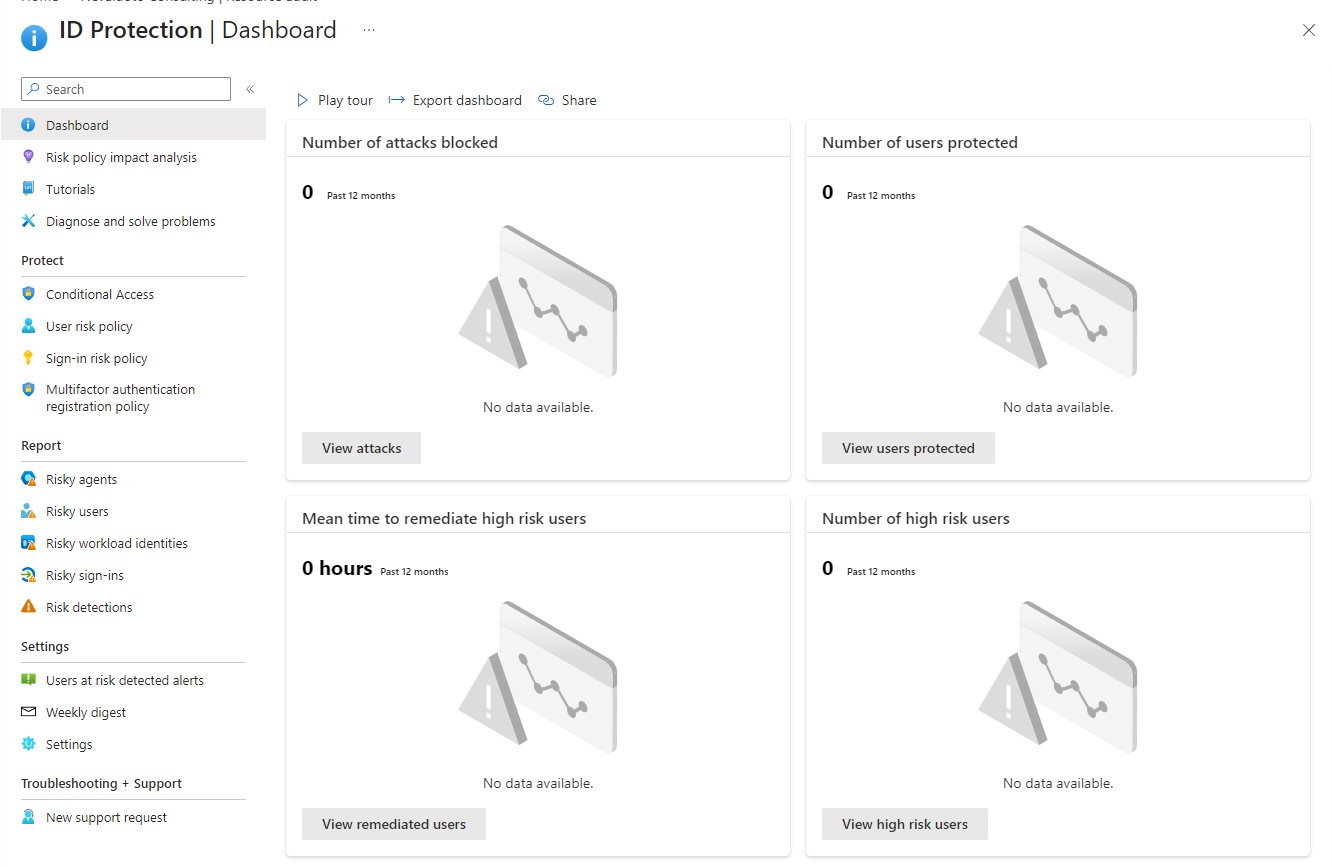
First, a look at where we’re starting from. In the Entra admin center, ID Protection → Dashboard shows absolutely no data, which makes sense, as nothing relevant has been configured yet. Nothing in place touches sign-in risk. This data is going to take a while to populate, so we’re not going to be checking it again, this is just to show that so far we have no data to work with.
Configuring the sign-in risk policy
One thing to note before anything else: security defaults must be disabled before you can create Conditional Access policies. We’ll come back to that at the end, because it’s easy to forget you turned them off.
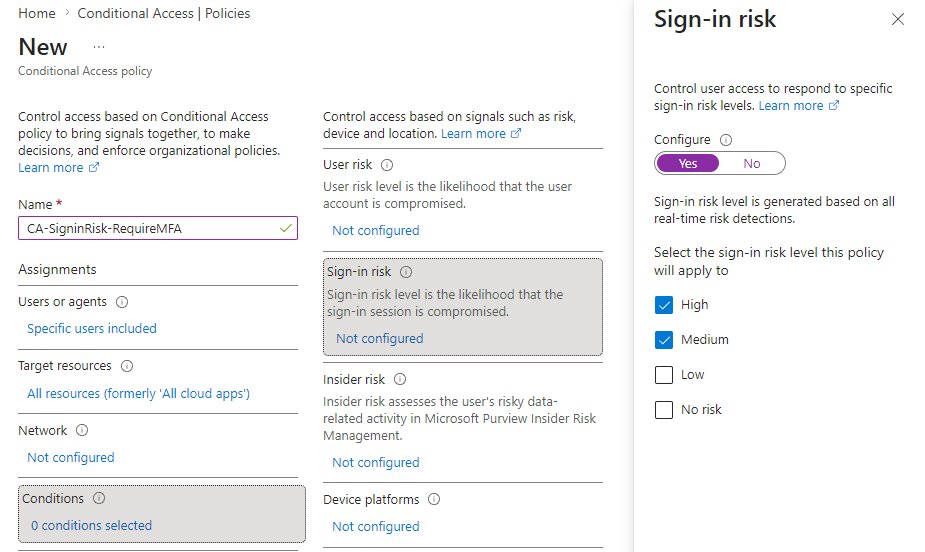
The policy itself lives under Entra ID → Conditional Access → + New policy. Mine is named CA-SigninRisk-RequireMFA, configured as follows:
- Users: the test user only. In production this would be All users with the breakglass accounts excluded, and that exclusion is not optional. A sign-in risk policy that locks out your last working admin account is a very effective way to ruin a week - or more likely weeks, if not months it’s going to take to work with Microsoft to restore access.
- Target resources: All cloud apps.
- Conditions → Sign-in risk: Medium and High.
- Grant: Require multifactor authentication.
- Session: Sign-in frequency - every time. This forces re-authentication when risk shows up instead of letting the user ride an existing token past the policy.
- Enable: On. Report-only mode is the right call for production rollouts, but it won’t demo the MFA challenge, so for a lab it goes straight to On. Create.
Triggering a detection
Now for the fun part. Let’s open Tor Browser, head to portal.office.com, and sign in as the test user.
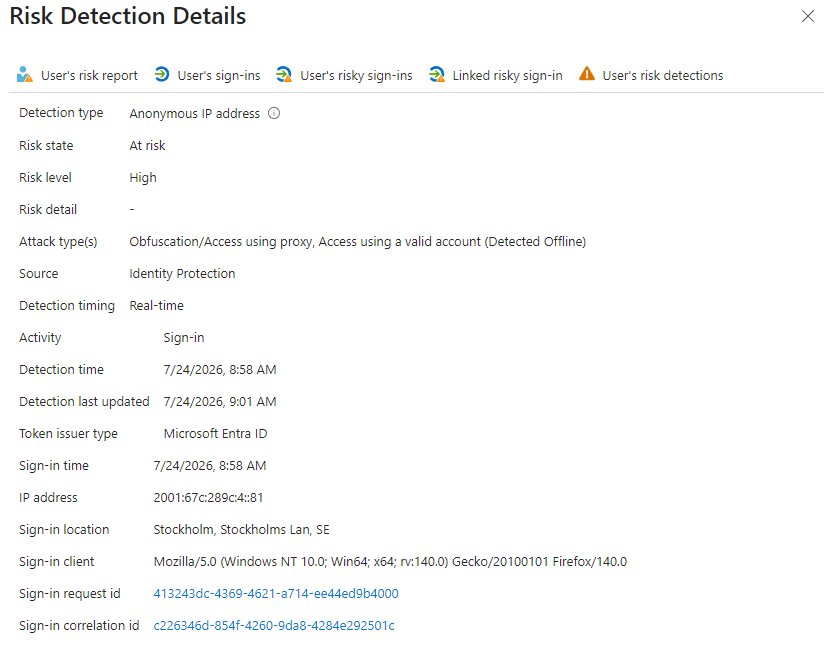
The expected outcome here is that the sign-in gets flagged as Anonymous IP address at medium or high risk, the CA policy fires, and we get either an MFA challenge or a block depending on what was configured. And indeed, we get prompted for MFA as expected, since that’s what the Grant control was set to, rather than being locked out completely.
Checking ID Protection → Risk detections confirms it: the sign-in location shows Stockholm, Sweden, which is exactly where the exit node of this Tor session was.
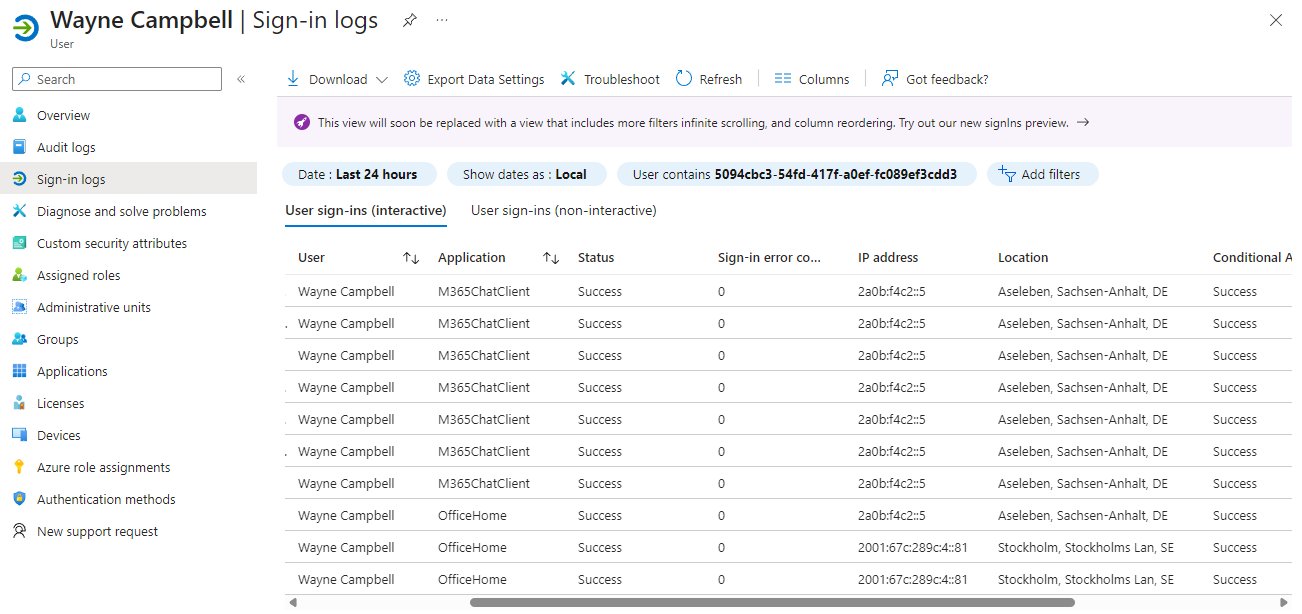
Then a bonus detection, courtesy of how Tor works: the connection automatically hops to a new circuit after a while, so before long we get to run the exact same sign-in flow again, this time apparently from Germany, as the risky sign-in policy hits us once more. Free repeatability for the lab, I suppose.
Blocking access with a policy
Next, let’s try another policy (well, edit the current one really, because we’re lazy like that) to completely block access outside known and trusted networks and locations, which in this case would be scoped to Finland. To keep things simple I just changed the Grant control to Block and excluded All trusted networks and locations, where I already had a Named location created.
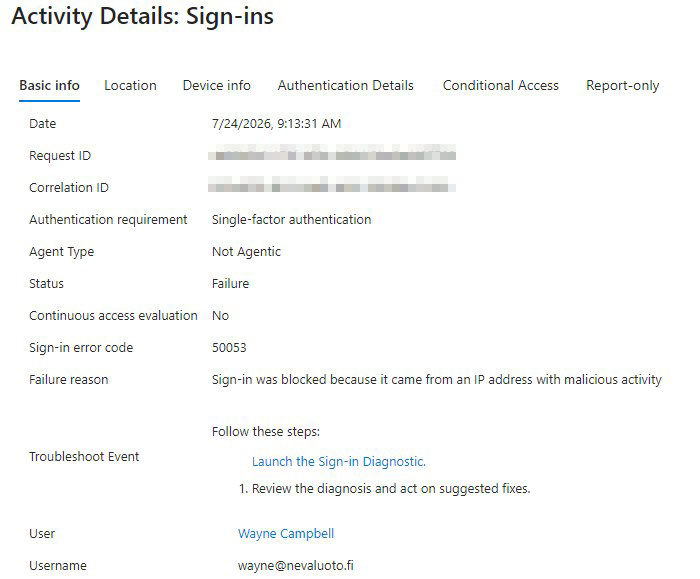
But whoops, looks like we hit a bad node that Microsoft flagged before our own policy even got a say. Sign-in error code 50053, “Sign-in was blocked because it came from an IP address with malicious activity,” isn’t what we wanted to test here, but I guess it’s good to know that even without security defaults there are some guardrails helping out in the background.
Let’s try again with a more regular setup: AirVPN, connected to a node in Norway. This time the sign-in actually gets blocked by our CA policy. And instead of any scary red text, the message lets the user know that their credentials are correct and their account isn’t suspended or blocked per se, it’s just that the organization has blocks in place that won’t allow them to sign in right now.

Remediation
By now our test user is lighting up like a Christmas tree with all these near-simultaneous sign-ins from around the world, which perfectly demonstrates how you’d find risky users and decide what to do with them under ID Protection → Risky users.
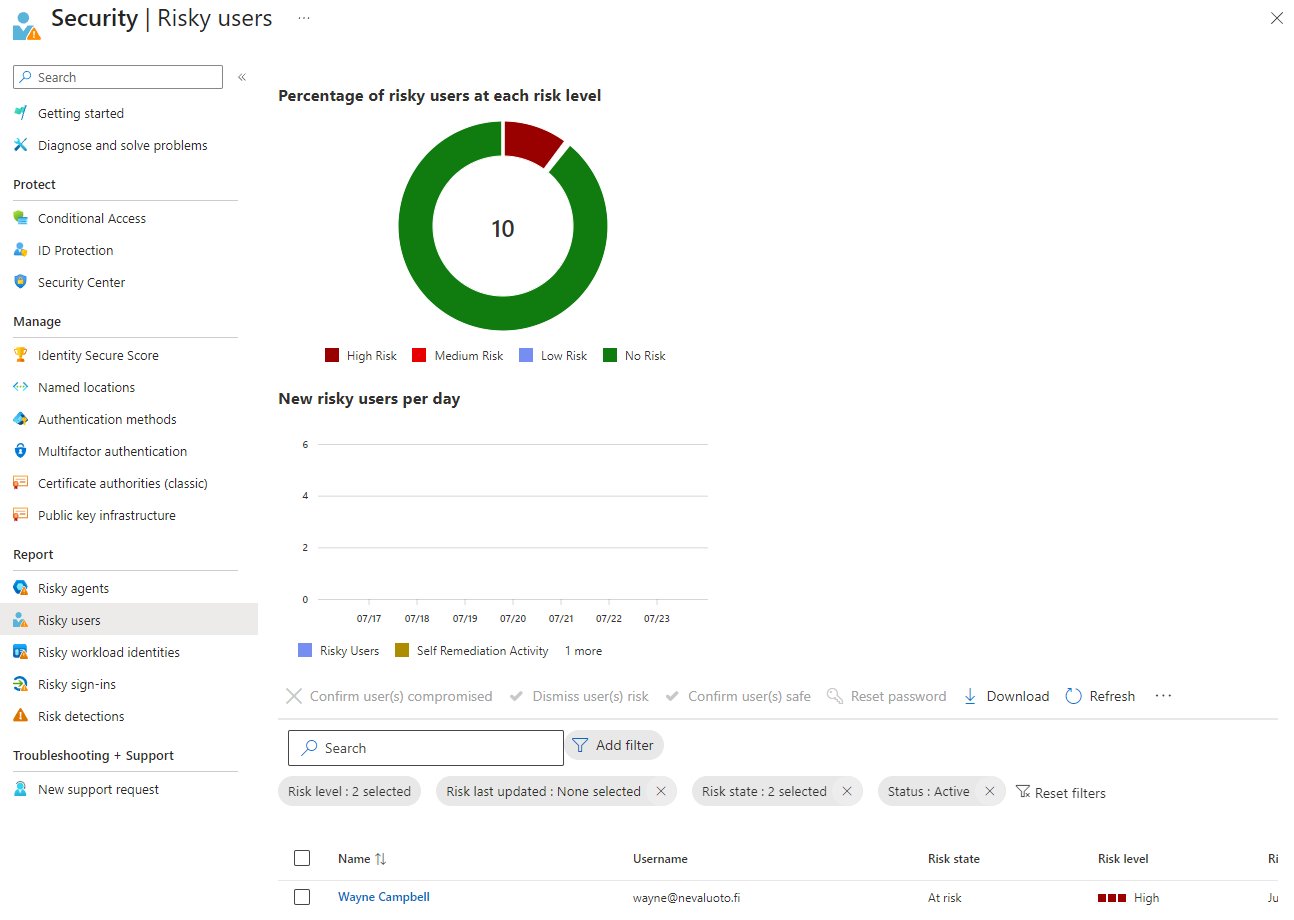
For the actual remediation there are two paths:
- Self-remediation: the user remediates the risk themselves, assuming the CA policy allows it. Our first test showed exactly this: the sign-in was deemed risky, the policy demanded MFA, the user passed it, done. This is the whole point of risk-based Conditional Access: the user fixes it themselves without a helpdesk ticket.
- Admin remediation: Risky users → select the user, and the options are Confirm user compromised, Dismiss user risk, and Confirm user safe.
Side note on turning security defaults back on
Since labbing with Conditional Access meant disabling security defaults, this is a good moment to remember to turn them back on if the tenant isn’t going to keep running on CA policies:
- Sign in to the Microsoft Entra admin centeras at least a Conditional Access Administrator.
- Browse to Entra ID → Overview → Properties.
- Select Manage security defaults.
- Set Security defaults to Enabled and hit Save.
Conclusion
A few things worth knowing before you run this yourself. First, detection lag is real: the risk reports don’t always populate immediately, so if you’re doing this in one evening and the dashboard looks empty, it’s probably not broken, it just hasn’t caught up yet. Second, Tor exit node sign-ins occasionally fail before the risk evaluation even happens (as our error 50053 detour showed), so if a sign-in dies for unrelated reasons, just request a new circuit and retry, or if the scoping allows, use a connection that’s more “trusted” and can be tested against more reliably.
And to repeat the warning from the top, because it deserves repeating: in production, breakglass account exclusions in these policies are non-negotiable. A risk policy that can lock out every admin in the tenant is not a security control, it’s a time bomb.
Beyond the caveats, this lab did what I hoped: instead of just screenshotting policy blades, we got real detections, real blocks, and both remediation paths demonstrated with a genuinely risky-looking user account.